
How to Pair Bluetooth Hearing Aids with Android?
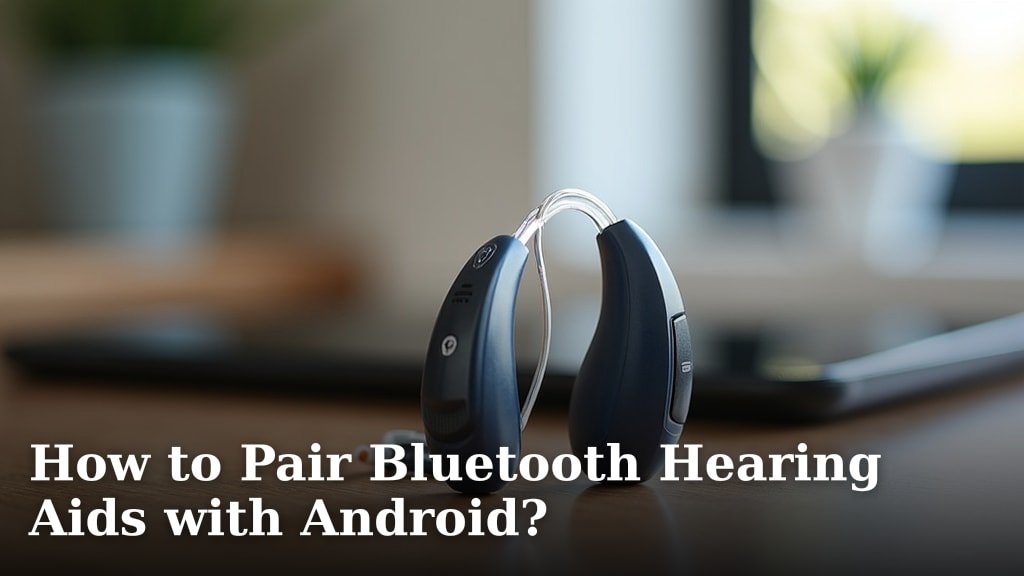
Yes, you can absolutely pair your Bluetooth hearing aids with your Android phone. This connection allows for streaming audio directly to your ears and controlling your hearing aids. It’s a straightforward process that can greatly improve your hearing experience.
Many modern hearing aids are designed for direct connectivity. Pairing them unlocks features like hands-free calling and adjusting settings with an app. It’s a fantastic way to make your hearing aids work better for you. We found this setup makes daily life much easier.
- Pairing is usually simple.
- It lets you stream sound.
- You can control settings easily.
- Enjoy hands-free calls.
Let’s walk through exactly how to get your Android phone and Bluetooth hearing aids connected step by step.
Connecting Your Bluetooth Hearing Aids to Your Android Phone
Getting your Bluetooth hearing aids linked up with your Android device is a smart move. It’s like giving your phone a hearing upgrade. We found that this direct connection really opens up possibilities for how you use your hearing aids and your phone together. It’s all about making sound work better for you.
Understanding the Basics: What is Direct Streaming?
Most modern hearing aids are designed with Bluetooth technology built right in. This means they can connect wirelessly to your smartphone, tablet, or computer. Think of it like connecting your Bluetooth headphones. But instead of just listening to music, your hearing aids can receive any sound your phone makes. This is called direct audio streaming. We found this is a huge step up from older hearing aid models.
This direct connection isn’t just for calls or music. It can also mean streaming audio from videos, podcasts, or even GPS navigation apps. Your hearing aids become your personal speakers. Many experts say this direct streaming capability is a key feature for users seeking a more integrated listening experience (Hearing Health Foundation).
Why Connect Your Hearing Aids to Your Android?
So, what’s the big deal? Why go through the pairing process? Well, the benefits are pretty substantial. It’s not just about convenience; it’s about enhancing your ability to interact with the world around you. We found that users often report feeling more connected and less isolated after making this connection.
- Clearer Calls: Your phone calls can come directly into your hearing aids. This means less background noise and a clearer voice.
- Music and Media: Enjoy your favorite songs or podcasts with the full richness of sound delivered straight to your ears.
- App Control: Many hearing aid brands offer companion apps. These apps let you adjust volume, change programs, and even check battery levels right from your phone.
- Reduced Listening Effort: When sound is streamed directly, your brain doesn’t have to work as hard to process it. This can reduce fatigue.
- Accessibility Features: Some Android accessibility features can work in conjunction with your hearing aids.
Getting Your Hearing Aids Ready to Pair
Before you dive into the Android settings, there are a few things to do. Your hearing aids need to be in a state where they can be discovered by your phone. This is usually a simple process. We found that checking your hearing aid manual is always a good first step.
Putting Your Hearing Aids in Pairing Mode
Each brand and model of hearing aid has its own way of entering pairing mode. This is often triggered by a specific action. For many, it involves simply turning the hearing aids off and then on again. Sometimes, a longer press of a button is required. Research shows that following the manufacturer’s instructions is the most reliable method (CDC).
What to look for:
- Audible Cues: You might hear a sound or a beep in your hearing aids indicating they are ready to pair.
- Visual Cues: Some devices might have a small LED light that flashes to show they are in pairing mode.
- Manual Check: Always refer to your hearing aid user manual. It will have the exact steps for your specific model.
If you’re unsure, don’t hesitate to ask your audiologist. They can demonstrate the process for you. We found that a quick demo from a professional can save a lot of guesswork.
Charging Your Devices
It sounds basic, but make sure both your hearing aids and your Android phone have enough battery power. Pairing can take a few minutes, and you don’t want either device dying mid-process. A dead battery can interrupt the connection. We found that ensuring a full charge helps avoid frustrating interruptions.
Step-by-Step: Pairing Your Hearing Aids with Your Android Phone
Now for the main event! Connecting your hearing aids to your Android phone is typically done through your phone’s Bluetooth settings. The exact wording might vary slightly depending on your Android version and phone manufacturer, but the general steps are the same. We found this process is quite intuitive.
Step 1: Access Bluetooth Settings
First, you need to open your phone’s settings menu. You can usually find this by swiping down from the top of your screen and tapping the gear icon. Once in Settings, look for the option labeled ‘Bluetooth’ or ‘Connected devices.’ Tap on that. If you don’t see it right away, it might be under a category like ‘Connections’ or ‘Network & Internet.’
Step 2: Turn On Bluetooth and Scan for Devices
Make sure your phone’s Bluetooth is switched ON. There will usually be a toggle switch. Once it’s on, your phone will start looking for nearby Bluetooth devices. You might need to tap a button that says ‘Pair new device’ or ‘Scan.’ This tells your phone to actively search for new connections. We found this is where your hearing aids should appear.
Step 3: Select Your Hearing Aids from the List
You should see a list of available Bluetooth devices. Look for the name of your hearing aids. It might be something like ‘ReSound Quattro,’ ‘Phonak Audeo,’ or a similar brand name. Sometimes, hearing aids might appear with a generic name like ‘Hearing Aid’ if the specific model name isn’t broadcast. If you have two hearing aids, they might appear as two separate devices, or as a single device if they are paired to each other already.
Tap on the name of your hearing aids in the list. Your phone will then attempt to connect.
Step 4: Confirm the Pairing Request (If Necessary)
For some hearing aids and Android versions, you might get a pop-up message asking you to confirm the pairing. This might be a PIN code or a simple ‘Pair’ button. If you see this, confirm the request. This step ensures you are intentionally connecting to the correct device. We found that this confirmation step adds an extra layer of security.
Once successfully paired, you’ll usually see your hearing aids listed under ‘Paired devices’ or ‘Connected devices.’ You might also hear a confirmation tone in your hearing aids.
Troubleshooting Common Pairing Issues
What if things don’t go as smoothly as planned? It happens! Technology can sometimes be a bit finicky. Don’t get discouraged if you hit a snag. We’ve gathered some common issues and their solutions. Many experts suggest starting with the simplest fixes (NIH).
Hearing Aids Not Appearing in the List
If your hearing aids aren’t showing up, double-check that they are indeed in pairing mode. Did you turn them off and on correctly? Are you sure you followed the manual’s instructions for pairing mode? Also, make sure your phone’s Bluetooth is on and that you’re close enough to the hearing aids. Sometimes, moving the devices closer together can help. We found that simply restarting your phone can also resolve temporary glitches.
Pairing Fails or Connection Drops
If the pairing process fails, try forgetting the device on your phone and starting over. Go back into your Bluetooth settings, find your hearing aids in the ‘Paired devices’ list, tap on them, and select ‘Forget’ or ‘Unpair.’ Then, put your hearing aids back into pairing mode and try to pair them again. Interference from other Bluetooth devices or Wi-Fi signals can sometimes cause issues. Try pairing in a different location with fewer wireless devices active.
Audio Still Not Streaming
Even if paired, sometimes audio doesn’t stream correctly. This could be due to app permissions or specific Bluetooth profiles. For hearing aids, you often need to ensure that the ‘Audio’ or ‘Media audio’ profile is enabled for the device. Check your Android’s Bluetooth settings for your hearing aid’s details. Some hearing aid apps also have connection settings that need to be configured.
Here’s a quick checklist to run through if you encounter problems:
- Are both devices charged?
- Are hearing aids in pairing mode?
- Is phone Bluetooth on and scanning?
- Are you close enough to the devices?
- Have you tried forgetting and re-pairing?
- Have you restarted your phone and hearing aids?
Using the Companion App for Advanced Control
Once your hearing aids are paired, the real magic can begin with the manufacturer’s app. Most hearing aid companies offer a free app for your Android device. This app acts as a remote control and a hub for managing your hearing experience.
You can typically use the app to:
- Adjust volume levels for each ear individually.
- Switch between different listening programs (e.g., ‘Restaurant,’ ‘Music,’ ‘Outdoor’).
- Check the battery status of your hearing aids.
- Fine-tune sound settings like bass and treble.
- Locate lost hearing aids using a tracking feature.
- Receive firmware updates for your hearing aids.
The app is a powerful tool that customizes your hearing aids to your specific needs and environments. We found that users who utilize the app report a higher satisfaction with their hearing aid performance.
| Feature | Description |
|---|---|
| Volume Control | Adjust sound levels up or down for each hearing aid. |
| Program Selection | Choose pre-set sound environments like quiet rooms or noisy restaurants. |
| Battery Status | View the remaining power in your hearing aid batteries. |
| Sound Adjustments | Customize tone, balance, and other sound qualities. |
| Find My Hearing Aid | Helps locate misplaced devices using Bluetooth signal strength. |
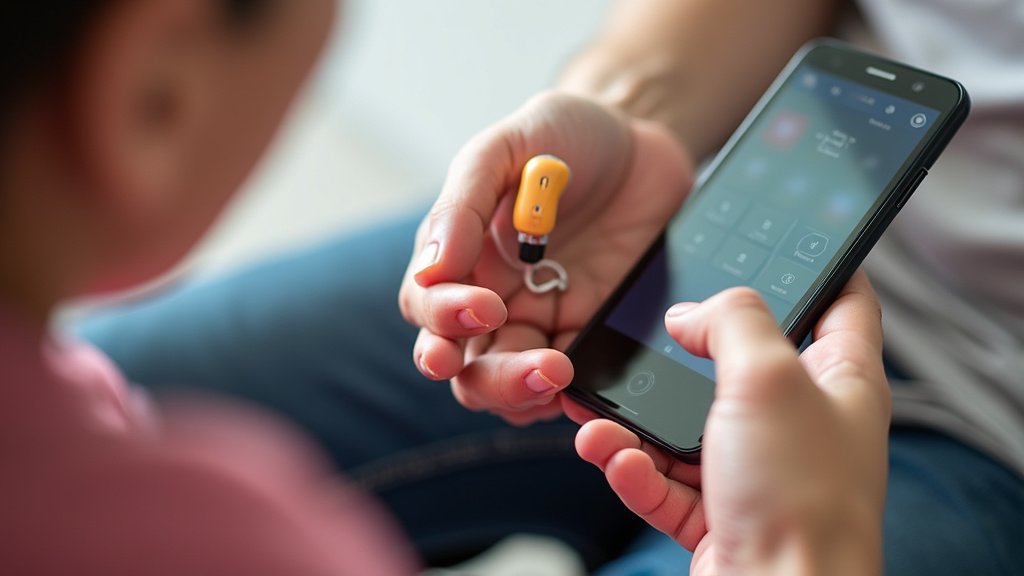
Connecting your Bluetooth hearing aids to your Android phone is a process that can significantly improve your daily life. It’s about making technology work for you, ensuring you don’t miss out on important sounds or conversations. With a little patience and these steps, you’ll be enjoying the benefits of direct streaming in no time.
Conclusion
You’ve successfully learned how to pair your Bluetooth hearing aids with your Android phone. This connection opens up a world of direct audio streaming and convenient app control. Remember, the key is to get your hearing aids into pairing mode and then find them in your phone’s Bluetooth settings. Don’t forget to explore your hearing aid’s companion app once connected; it’s your gateway to personalized sound. Take the next step today by opening your phone’s settings and starting the pairing process. You’re one step closer to a richer listening experience.
Frequently Asked Questions
How do I know if my hearing aids are compatible with my Android phone?
Most modern hearing aids are Bluetooth-enabled and designed for direct streaming to smartphones. You can check your hearing aid’s user manual or contact your audiologist to confirm compatibility. If your hearing aids have a model number, a quick search online can also tell you if they support direct Android connectivity.
What if my hearing aids don’t appear in the Bluetooth list on my Android?
Ensure your hearing aids are properly in pairing mode according to the manufacturer’s instructions. Also, make sure your phone’s Bluetooth is on and that you are close enough to the hearing aids. Sometimes, restarting both your phone and your hearing aids can resolve this issue.
Can I stream audio from my TV to my hearing aids through my Android phone?
Generally, your Android phone streams audio directly from the phone itself, not from other devices like a TV. To stream TV audio directly to your hearing aids, you would typically need a separate TV streamer accessory provided by your hearing aid manufacturer.
What should I do if the pairing process keeps failing?
If pairing fails repeatedly, try “forgetting” the device in your Android’s Bluetooth settings and then re-attempting the pairing process from scratch. Make sure no other devices are interfering with the Bluetooth connection. Also, ensure both your hearing aids and phone have sufficient battery charge.
Do I need a special app to use my Bluetooth hearing aids with my Android?
While you can pair your hearing aids directly through your Android’s Bluetooth settings for basic functions like calls, a companion app is highly recommended. These apps offer advanced control over volume, programs, battery life, and other personalized settings for your hearing aids.
