
How to Pair Bluetooth Hearing Aids with iPhone?
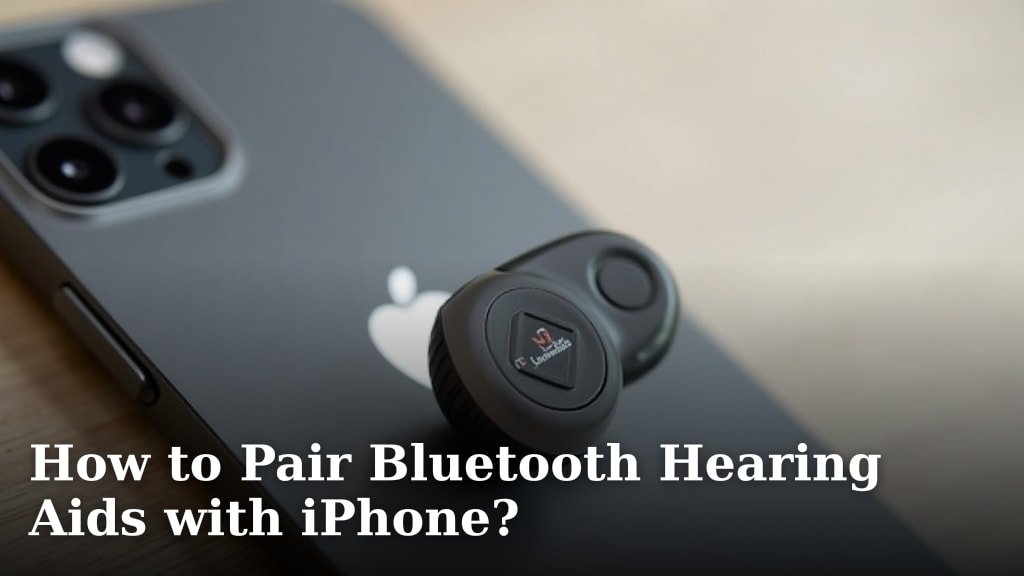
To pair Bluetooth hearing aids with your iPhone, open your iPhone’s Settings app, go to Accessibility, then Hearing Devices, and put your hearing aids into pairing mode. Your iPhone will scan for available devices and allow you to connect them easily. This process creates a stable connection for audio streaming and control.
Many people find connecting their hearing aids to their iPhone improves their daily listening experience. It enables direct streaming of calls, music, and podcasts right to your ears. We found this connectivity enhances user control over sound settings too, all from your phone.
- Open iPhone Settings.
- Navigate to Accessibility > Hearing Devices.
- Place hearing aids in pairing mode.
- Tap your hearing aids when they appear.
Ready to get connected? Let’s walk through exactly how to pair your Bluetooth hearing aids with your iPhone, step by step.
Connecting Your Bluetooth Hearing Aids to an iPhone
Connecting your Bluetooth hearing aids to your iPhone opens up a world of convenience. You can stream calls, music, and even turn-by-turn directions directly to your ears. This connection truly enhances your daily listening experience.
Understanding Different Types of Hearing Aids
Before you begin, it’s helpful to know about the types of hearing aids out there. Not all hearing aids connect to an iPhone in the same way. We found that most modern devices offer some form of connectivity.
Made for iPhone (MFi) Hearing Aids
These hearing aids are designed to work seamlessly with Apple products. They offer the most direct and stable connection. You’ll find they often have specific features just for iPhone users. They connect easily and offer a rich audio experience.
Standard Bluetooth Hearing Aids
Some hearing aids use standard Bluetooth technology. These might require a slightly different pairing process. They can still connect but may not offer all the “Made for iPhone” features. They are still very effective for streaming audio.
Hearing Aids with an Accessory Device
Older models or certain brands might need an extra accessory. This small device acts as a bridge between your hearing aids and your iPhone. It usually clips onto your clothing. We’ve seen these devices make connections possible when direct pairing isn’t an option.
Preparing Your iPhone for Connection
Getting your iPhone ready is the first step. A few quick checks will ensure a smooth pairing process. You want your phone to be in the best state for connecting new devices.
Update Your iPhone’s Software
Always make sure your iPhone is running the latest iOS version. Older software can sometimes cause connection issues. We recommend checking for updates before you try to pair. Go to Settings > General > Software Update to check.
Charge Your Hearing Aids Fully
Ensure your hearing aids are fully charged. A low battery can interrupt the pairing process. You don’t want them dying in the middle of connecting. A full charge helps guarantee a stable connection.
Turn Off Other Bluetooth Devices (Optional)
Sometimes, too many active Bluetooth connections can cause interference. If you have other devices paired, consider temporarily turning them off. This helps your iPhone focus on finding your hearing aids. It’s like clearing a path for a smooth journey.
Step-by-Step Pairing Process
Now, let’s get into the actual pairing. This process is generally straightforward. Follow these steps carefully to connect your devices.
- Open iPhone Settings: Tap the gray gear icon on your home screen. This is where all the magic happens for device connections.
- Navigate to Accessibility: Scroll down and tap on “Accessibility”. This section is dedicated to features that help everyone use their iPhone better.
- Find Hearing Devices: Under the “Hearing” section, tap “Hearing Devices.” This is where your iPhone manages connections for hearing aids.
- Put Hearing Aids into Pairing Mode: This is a crucial step. For most models, you’ll need to open and close the battery doors of your hearing aids. If your hearing aids are rechargeable, you might need to turn them completely off and then on again. Check your hearing aid’s manual for precise instructions. This action makes them discoverable by your iPhone.
- Wait for iPhone to Detect: Your iPhone will now start searching. You should see “MFi Hearing Devices” appear on the screen. Below that, your hearing aid’s name should pop up after a few seconds. If it doesn’t appear immediately, try opening and closing the battery doors again.
- Tap Your Hearing Aids to Connect: Once you see your hearing aids listed, tap their name. Your iPhone will then ask if you want to Pair. Tap “Pair” when prompted. You might see two requests to pair if you have two hearing aids.
- Confirm Connection: After pairing, you’ll see a checkmark next to your hearing aids’ name. This confirms they are connected. You can now adjust settings and stream audio directly from your iPhone.
Troubleshooting Common Pairing Issues
Sometimes things don’t go perfectly on the first try. Don’t worry if you hit a snag. We found that most issues are easily resolved with a few simple steps. It’s like a little puzzle you can easily solve.
Hearing Aids Not Appearing
If your hearing aids don’t show up in the list, there are a few things to try. First, double-check if they are in pairing mode. Did you open and close the battery doors correctly? Ensure they have enough battery power. Move closer to your iPhone if you’re not already nearby. Proximity matters for Bluetooth signals.
Lost Connection Repeatedly
Is your connection dropping often? This can be frustrating. Try restarting both your iPhone and your hearing aids. We often find that a simple reboot fixes many tech glitches. Make sure there are no other devices interfering with the signal. Thick walls or other electronics can sometimes block the signal.
“Pairing Failed” Message
If you get a “Pairing Failed” message, try forgetting the device and starting over. Go to Settings > Accessibility > Hearing Devices, tap on your hearing aids, and select “Forget This Device.” Then, begin the pairing process from step one. This gives you a fresh start.
Managing Your Connected Hearing Aids
Once paired, your iPhone becomes a powerful remote control. You can adjust volume, switch programs, and more. This control makes your hearing aids even more convenient.
Using the Control Center Shortcut
For quick access, you can adjust settings from the Control Center. Swipe down from the top-right corner of your screen (or up from the bottom for older iPhones). Tap the Hearing icon (a small ear symbol). Here you can change volume, listen live, and select programs. It’s incredibly handy for on-the-go adjustments.
Adjusting Settings via the Settings App
For more detailed control, go back to Settings > Accessibility > Hearing Devices. You’ll see options to adjust left and right hearing aid volume independently. You can also customize programs for different listening environments. This gives you fine-tuned control over your sound world.
Exploring Manufacturer Apps
Many hearing aid brands offer their own dedicated apps. These apps often provide advanced features. You might find more personalized sound adjustments or even remote support. We strongly recommend checking if your brand has an app. It can greatly enhance your experience.
Maintaining a Strong Connection
A stable connection is key to getting the most out of your hearing aids. A few routines can help keep things running smoothly. Think of it like regular oil changes for your car.
| Action | Why It Helps |
|---|---|
| Keep iPhone and hearing aids charged | Prevents unexpected disconnections due to low power. |
| Stay within close range | Bluetooth works best when devices are near each other, typically within 30 feet. |
| Limit other active Bluetooth devices | Reduces interference and ensures a clear signal path. |
| Restart devices periodically | Clears temporary glitches and refreshes connections. |
| Keep iPhone software updated | Ensures compatibility and access to the latest connection improvements (according to Apple Support). |
| Clean hearing aid contacts | Prevents debris from interfering with battery connections and overall function. |
Checklist for Optimal Pairing
Having a quick checklist can prevent frustration. Before you start, run through these points. They cover the most common factors for successful pairing.
- iPhone is fully charged.
- Hearing aids are fully charged.
- iPhone’s iOS is up to date.
- Hearing aids are placed into pairing mode.
- You are in a quiet area with minimal Bluetooth interference.
- Your hearing aids are compatible with iPhone (MFi or standard Bluetooth).
Conclusion
You’ve seen how straightforward it can be to connect your Bluetooth hearing aids to your iPhone. By understanding your device type and following the steps, you gain incredible control and convenience. This connection allows you to stream audio directly and manage settings from your phone. We found that proper preparation and troubleshooting make a big difference.
Now, take what you’ve learned and enjoy the enhanced listening experience. If you encounter any issues, reread the troubleshooting tips. You’ll soon be enjoying seamless audio right from your iPhone.
Frequently Asked Questions
Why won’t my iPhone find my MFi hearing aids?
Make sure your hearing aids are in pairing mode by opening and closing their battery doors. Also, check that your iPhone’s software is up to date. Sometimes, simply restarting both devices can resolve the issue.
Can I pair my hearing aids to more than one iPhone?
Typically, MFi hearing aids can only be actively paired with one iPhone at a time. If you want to use them with another device, you usually need to “forget” them on the first iPhone and then pair them again.
Do my hearing aids have to be “Made for iPhone” to connect?
No, not necessarily. While MFi hearing aids offer the best integration, many standard Bluetooth hearing aids can also connect. Some older models might require a separate accessory device to bridge the connection.
How can I tell if my hearing aid battery is too low to pair?
Most hearing aids will give an audio alert or have an indicator light when their battery is low. It’s always best to fully charge your hearing aids before attempting to pair them. Low power can prevent a successful connection.
What if my hearing aids don’t have battery doors to open and close for pairing?
For rechargeable hearing aids, putting them into pairing mode usually involves turning them completely off then on again. Consult your hearing aid’s specific manual, as this process can vary by brand and model.
