How to Connect Bluetooth Hearing Aids to a Computer
To learn how to Bluetooth hearing aids to a laptop, first confirm that your hearing aid supports computer audio. Then pair it directly or use the compatible streamer recommended for your model, and select the right audio input and output.
On this page (9 sections)
- Can Bluetooth hearing aids connect to a laptop?
- How do you pair hearing aids with a computer?
- How do you choose hearing aids as the sound output?
- What should you choose if direct pairing does not work?
- Why won't my hearing aids pair with Bluetooth?
- Do wax guards or ear buds affect computer pairing?
- How should you choose hearing aids for laptop audio?
- What mistakes should you avoid when connecting hearing aids to a laptop?
- How to Bluetooth hearing aids to a laptop: which option should you choose?
You can connect Bluetooth hearing aids to a laptop when the hearing aids and computer support a compatible audio connection. To figure out how to Bluetooth hearing aids to a laptop, first check your model's computer-streaming instructions, then pair it and choose the correct sound output.
Phone pairing does not guarantee direct computer streaming. Some hearing aids connect to specific computers, while others need a manufacturer accessory or streamer.
Can Bluetooth hearing aids connect to a laptop?
Yes, if the hearing aids support a connection method your laptop can use. Check the manual or manufacturer support information for computer compatibility, supported operating systems, and any required streamer.
Hearing aids may pair with a phone for calls or music but use a different route for computer audio. A laptop's Bluetooth menu might not show them as an audio device, even when Bluetooth is on.
For small in-the-canal models, compare CIC hearing aid Bluetooth features.
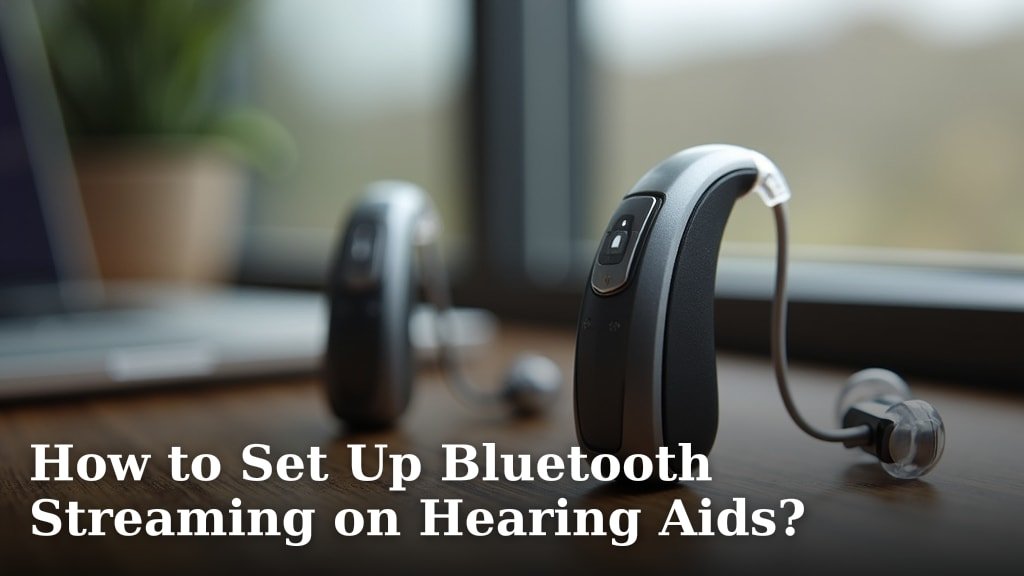
For a basic overview of phone setup, see how to set up Bluetooth streaming on hearing aids. Computer audio can have extra compatibility requirements, so confirm those before buying an adapter.
How to Bluetooth hearing aids to a laptop with an adapter
A generic adapter is not a reliable fix if your hearing aid requires a specific streamer. Some models connect directly to compatible computers, while others need a brand-specific computer accessory.
Check the hearing aid model and computer operating system against the manufacturer's instructions before buying an adapter. A standard Bluetooth USB adapter may add Bluetooth to a computer without providing the connection your hearing aids need.
How do you pair hearing aids with a computer?
Put the hearing aids or their compatible streamer in pairing mode, open your computer's Bluetooth settings, and select the device if it appears. Pairing steps differ by model, so follow the maker's instructions.
For a Phonak-specific walkthrough, see how to pair Phonak hearing aids.
- Confirm computer compatibility and any streaming requirements.
- Turn on Bluetooth on the computer.
- Put the hearing aids or streamer into pairing mode.
- Open the computer's Bluetooth device menu and select the device if it appears.
- Select it as the audio output and, if supported, the microphone input.
- Play a short clip and check that sound reaches the intended device.
If the hearing aids remain connected to your phone, temporarily turn off the phone's Bluetooth or disconnect the aids there. Some models connect to several devices but stream from only one at a time.
For a model-specific example, read how to connect Oticon hearing aids to a laptop. Pairing steps and accessory needs can vary by model.
How do you choose hearing aids as the sound output?
Select the hearing aids or compatible streamer in your computer's sound settings after pairing. A successful Bluetooth connection does not automatically switch sound from the laptop speakers.
On Windows, open the sound output menu and choose the hearing aids or streamer. On a Mac, open Sound settings and select the connected device under output.
Menu names can vary by operating system version.
For video calls, check the call app's audio menu as well. Choose the hearing aids for speaker output and microphone input only if that connection supports both.
How to Bluetooth hearing aids to a laptop for calls
Check speaker and microphone support separately before relying on a hearing aid connection for meetings. Some connections send sound to the hearing aids but do not return microphone audio to the computer.
If the hearing aid microphone is unavailable, use the laptop's built-in microphone or a separate headset microphone while keeping the hearing aids selected for sound output. Confirm the microphone choice in both the operating system and the call app.
What should you choose if direct pairing does not work?
Use the streaming accessory recommended for your hearing aid model if its maker says direct laptop pairing is unsupported. A compatible accessory can provide the connection route needed for computer audio.
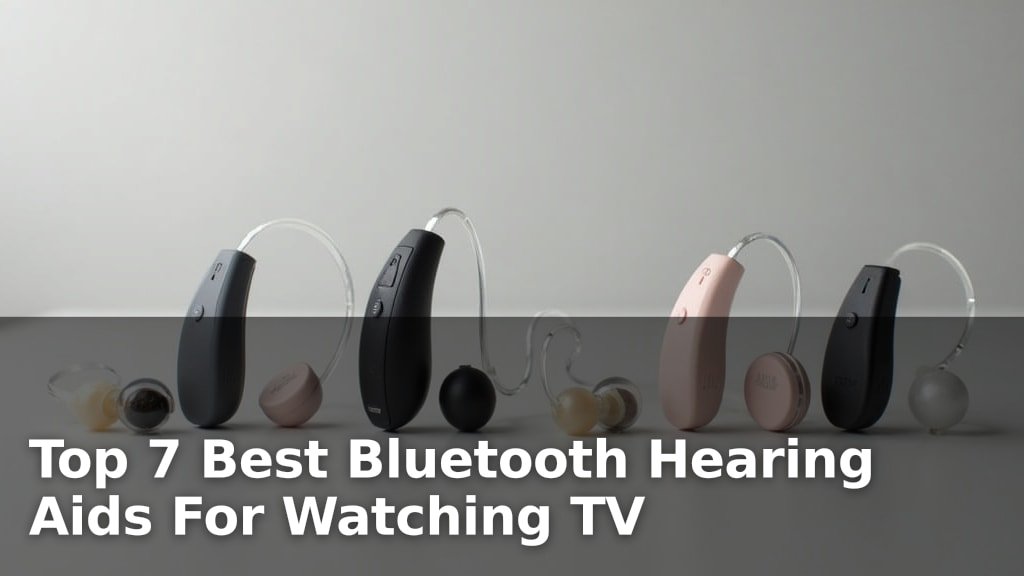
For TV listening, a dedicated transmitter or hearing aid accessory may be part of the setup. Compare options in Bluetooth hearing aids for watching TV and see how to connect hearing aids to a Samsung TV for a TV-specific setup.
If you need a separate listening device for computer calls, TOZO A1 earbuds are described as compatible with laptops and other Bluetooth devices. They are a separate audio option, not a way to stream sound into hearing aids.
The TOZO A1 includes a microphone for calls and video meetings, plus touch controls and access to EQ presets through the TOZO app. Its compact in-ear design may suit someone who wants separate earbuds for everyday computer audio.
Skip these earbuds if your goal is to send laptop sound into your hearing aids, or if you need a hearing aid with a specific fit or sound profile. They do not replace a compatible hearing aid streamer.
Why won't my hearing aids pair with Bluetooth?
Common causes include an unsupported computer connection, inactive pairing mode, or an existing connection to another device. Confirm your model's requirements before repeating the pairing steps.
Try these checks:
- Turn Bluetooth off and on again on the computer.
- Restart the hearing aids and follow the maker's pairing instructions.
- Temporarily disconnect the hearing aids from a phone or tablet.
- Remove an old saved pairing from the computer, then try again.
- Check the computer's operating system and accessory instructions.
- Move the devices closer together while pairing.
If the hearing aids do not appear, they may require a streamer or may not support direct computer audio. For more troubleshooting, see why hearing aids won't pair with Bluetooth.
Do wax guards or ear buds affect computer pairing?
Wax guards and ear buds do not add Bluetooth support. They serve separate care and fit needs, so choose them only when they match your hearing aid model.
Recuren Plus Starkey Hear Clear wax guards are replacement filters for compatible Starkey hearing aids. Use the guard type recommended for your device, and replace it according to its care instructions.
The 7 mm Starkey Comfort closed/occluded ear buds are made for Starkey hearing aids. They may suit someone whose compatible device uses that size and style, but they will not help with computer pairing.
Skip these ear buds if your hearing aids use a different size, style, or brand. Confirm the fit your device needs before choosing replacement parts.
How should you choose hearing aids for laptop audio?
Choose based on confirmed computer compatibility and a connection method you can use. Ask the hearing aid maker or your hearing care professional whether your exact model streams directly to your computer or needs an accessory.
If you're comparing hearing aids, start with Bluetooth hearing aids and check each model's computer support separately. Bluetooth support for phones or TVs alone does not confirm laptop compatibility.
For regular computer calls, confirm support for both speaker output and microphone input. If you mainly want to hear videos or music, focus on reliable audio output and whether the required streamer is convenient to connect.
Skip a model if its computer connection is unclear and you need laptop streaming every day. Choose a separate Bluetooth headset or earbuds instead when you want a straightforward computer audio option and do not need sound routed through your hearing aids.
What mistakes should you avoid when connecting hearing aids to a laptop?
The biggest mistake is assuming that phone Bluetooth support means computer streaming will work. Check compatibility first, then pair and select the audio device.
Avoid buying a generic adapter before confirming the required connection method. Also check the audio output and call app separately, since pairing can succeed while sound continues through the speakers or the wrong microphone stays selected.
Keep hearing aids and accessories dry and clean according to their care instructions. Wax guards and ear buds are replacement supplies, not connection tools; use only parts that fit your model.
How to Bluetooth hearing aids to a laptop: which option should you choose?
Choose direct pairing when the hearing aid maker confirms laptop support; choose the recommended streamer when direct pairing is unsupported. For calls, confirm that the microphone works as well as the speakers.
If you only need laptop audio and your hearing aids cannot stream to it, a separate Bluetooth audio device such as TOZO A1 may fit that need. If you want sound delivered through your hearing aids, verify the connection route before buying anything.
Frequently asked questions
Can I Bluetooth my hearing aids to my computer?
Sometimes. Your hearing aids must support computer audio.
Your computer also needs a compatible Bluetooth connection or a manufacturer streaming accessory.
A phone app connection alone doesn't confirm laptop support, so check your model's computer instructions before pairing.
Why won't my hearing aids show up on my laptop?
They may not be in pairing mode, may still be connected to a phone, or may need a compatible accessory to stream computer audio. Restart Bluetooth on the laptop, follow the hearing aid maker's pairing steps, and check whether your model supports direct computer streaming.
Do I need a Bluetooth adapter for hearing aids?
Possibly. Some hearing aids connect directly to certain computers.
Others need a brand-specific streamer or computer accessory.
A generic USB Bluetooth adapter may not support the connection your hearing aids require, so confirm compatibility with the hearing aid maker before buying one.
Can I use hearing aids for computer calls?
Yes, if your hearing aids support computer audio and their microphone works with your computer or streaming accessory. After pairing, select the hearing aids for speaker output and microphone input in the call app, then check its audio settings with a short test call.