How to Set Up Bluetooth Streaming on Hearing Aids?
On this page (8 sections)
Yes, you can absolutely set up Bluetooth streaming directly to your hearing aids. This technology allows you to stream music, take calls, and hear navigation right through your devices, offering a much clearer audio experience. It’s a fantastic way to improve your daily listening enjoyment and connectivity.
Many modern hearing aids are designed with built-in Bluetooth connectivity. This means you can pair them directly with your smartphone, tablet, or computer. Setting this up is usually a straightforward process that greatly enhances how you interact with your technology.
- Pair your hearing aids with your smartphone.
- Ensure Bluetooth is enabled on both devices.
- Follow your hearing aid manufacturer’s instructions.
- Test streaming with music or a phone call.
Let’s walk through exactly how to get your hearing aids connected via Bluetooth so you can start enjoying streamed audio right away.
Getting Your Hearing Aids Connected: Bluetooth Streaming Setup
Setting up Bluetooth streaming on your hearing aids is a wonderful way to bring clearer audio directly to your ears. You can enjoy music, podcasts, phone calls, and even GPS directions without struggling to hear. Most modern hearing aids offer this capability, turning your devices into a personal, high-quality audio system. It’s typically a pretty simple process. Let’s get your hearing aids streaming!
Understanding the Basics of Hearing Aid Bluetooth
Bluetooth is a short-range wireless technology. It lets devices communicate with each other without needing cables. Think of it like a tiny invisible wire connecting your phone to your hearing aids. This connection allows audio signals to travel wirelessly and directly into your ears. This bypasses any ambient noise that might interfere with your listening experience. It’s a significant upgrade for anyone who uses a smartphone or tablet.
Compatibility: Does Your Device Work?
Before you start, it’s important to know if your hearing aids and your smartphone or tablet are compatible with Bluetooth streaming. Most newer hearing aids, especially those from the last 5-7 years, have this feature. This is often referred to as Made for iPhone (MFi) or Android streaming capabilities. Check your hearing aid’s manual or the manufacturer’s website. You can also ask your audiologist. They can confirm if your specific model supports Bluetooth streaming.
What You’ll Need to Get Started
You really only need a few things to get going. First, you need your hearing aids, of course. Make sure they are charged or have fresh batteries. Second, you’ll need the device you want to stream from – typically a smartphone or tablet. Ensure that Bluetooth is enabled on this device. You may also need your hearing aid’s manufacturer app. Many apps help manage settings and the pairing process.
The Pairing Process: Step-by-Step Guide
Pairing your hearing aids to your smartphone is usually a straightforward process. It’s similar to pairing wireless headphones. We’ll walk through the general steps here, but remember that exact instructions can vary slightly by manufacturer. Always refer to your hearing aid’s specific manual for precise details.
Step 1: Prepare Your Hearing Aids
The first step is to make sure your hearing aids are ready to be discovered. Most hearing aids need to be placed in pairing mode. This often involves opening and closing the battery drawer on a BTE (Behind-the-Ear) style aid. For rechargeable models, you might need to turn them off and then on again, or press a small button. Again, consult your manual. The goal is to make them visible to your smartphone’s Bluetooth.
Step 2: Enable Bluetooth on Your Smartphone
Next, you need to turn on Bluetooth on your smartphone or tablet. This is usually found in the Settings menu. On most iPhones, you’ll go to Settings, then Bluetooth, and toggle it on. For Android devices, you typically go to Settings, then Connections, and then Bluetooth. Make sure the toggle switch is in the ‘on’ position. Your device will then start searching for available Bluetooth devices nearby.
Step 3: Discover and Select Your Hearing Aids
Once Bluetooth is enabled and your hearing aids are in pairing mode, your smartphone should detect them. They might appear under a list of “Available Devices.” You might see the brand name or a model number. For example, it could say “Phonak Audeo” or “Oticon Opn.” Tap on the name that matches your hearing aids to initiate the pairing. You might see a confirmation code pop up on your phone screen. If it matches what you see on your hearing aid’s display (if applicable) or if the prompt just asks to pair, confirm it.
Step 4: Confirm the Connection
After you tap to pair, your phone will attempt to connect to your hearing aids. You might hear a confirmation tone or sound in your hearing aids. Your phone’s Bluetooth settings should then show your hearing aids under “Paired Devices” or “My Devices.” This means the connection is successful! If it doesn’t connect, turn off Bluetooth on your phone, power cycle your hearing aids again, and try the pairing process once more. Sometimes it takes a couple of tries.
Using the Manufacturer’s App for Pairing
Many hearing aid manufacturers offer companion apps. These apps can simplify the pairing process. Sometimes, the app will guide you through the entire setup. You might need to download the app from your device’s app store first. Once installed, open the app and follow its instructions. It will likely prompt you to enable Bluetooth and put your hearing aids in pairing mode, much like the manual steps. The app often provides additional features. You can control volume, change listening programs, and even get battery status updates. We found that using the app can make managing your hearing aids much easier.
Testing Your Bluetooth Connection
Once paired, it’s time to test your new audio connection. This is the fun part! You want to make sure everything is working as expected.
Streaming Music or Podcasts
Open your favorite music app or podcast player. Start playing some audio. If the connection is successful, you should hear the music or podcast directly through your hearing aids. The sound quality should be much clearer than if you were listening through your phone’s speaker. You might need to adjust the volume using your phone’s volume controls or the hearing aid app. Experiment with different types of audio to see how clear everything sounds.
Making and Receiving Phone Calls
Try making a phone call to a friend or family member. When the call connects, the audio should automatically route to your hearing aids. You’ll be able to hear the other person clearly. Many hearing aids also have built-in microphones. This means you can speak into your phone normally, and the sound will be picked up and transmitted back to the person you’re talking to. Some users find that they can even leave their phone in their pocket during calls. This is a huge convenience.
Troubleshooting Common Issues
What if it doesn’t work right away? Don’t worry, it happens! Here are a few common troubleshooting tips we’ve found helpful:
- Re-pair the devices: Sometimes the connection just gets confused. Try unpairing your hearing aids from your phone and then re-pairing them from scratch.
- Check the battery life: Low battery power in your hearing aids or phone can sometimes disrupt Bluetooth connections. Make sure both are sufficiently charged.
- Restart your devices: A simple restart can often resolve temporary glitches. Turn off your hearing aids, and restart your smartphone. Then, try pairing again.
- Check for interference: Other electronic devices nearby can sometimes interfere with Bluetooth signals. Try moving to a different location if you’re in a crowded area.
- Update software: Ensure your smartphone’s operating system and your hearing aid app are up to date. Software updates often include fixes for connectivity issues.
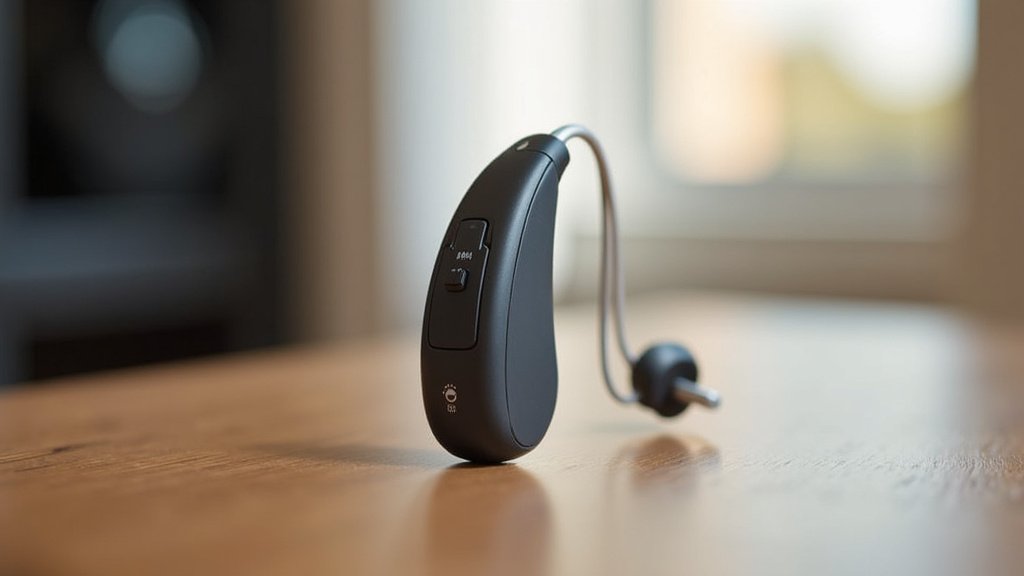
Managing Your Bluetooth Settings
Once your hearing aids are paired, you’ll want to know how to manage the connection. Your smartphone’s Bluetooth settings are your command center.
Switching Between Streaming and Normal Hearing
Your hearing aids are smart. They usually switch automatically between streaming audio and your normal hearing environment. When a call comes in or music starts, they’ll switch to streaming mode. When the audio stops, they typically return to picking up ambient sound. Some hearing aid apps allow you to manually control this. You might have options to prioritize phone calls or stream only when you choose. This flexibility is key to using the technology effectively.
Disabling Bluetooth Streaming Temporarily
There might be times when you don’t want your hearing aids streaming audio. For instance, if you’re in a meeting and only want to hear the people in the room. You can usually disable streaming in a few ways. The simplest is to turn off Bluetooth on your smartphone. You can also often mute or disconnect the hearing aids directly from your phone’s Bluetooth settings or through the hearing aid app. Your hearing aid’s physical buttons or programs might also offer a way to temporarily stop streaming.
A Quick Checklist for Success
Ready to get started? Here’s a quick checklist to guide you:
- Confirm your hearing aids and phone are Bluetooth compatible.
- Ensure hearing aids are charged and in pairing mode.
- Turn on Bluetooth on your smartphone or tablet.
- Select your hearing aids from the list of available devices.
- Confirm the pairing request on your phone.
- Test with music or a phone call to ensure it works.
Following these steps should have you streaming audio to your hearing aids in no time. It’s a fantastic way to enhance your daily audio experience.
Conclusion
You’ve learned how simple it can be to set up Bluetooth streaming for your hearing aids. We walked through the compatibility checks, the straightforward pairing process, and how to test your new audio connection. This technology truly bridges the gap, bringing music, calls, and more directly to you with enhanced clarity. Don’t let this amazing feature go unused! Your next step is to grab your devices and follow the pairing steps to start experiencing clearer, richer sound today.
Frequently Asked Questions
Can I stream audio from my TV to my hearing aids?
Yes, many modern hearing aids can stream audio directly from your TV. You might need a special TV adapter or streamer, which often connects to your TV’s audio output and then wirelessly to your hearing aids. Check with your audiologist or the hearing aid manufacturer for compatible TV accessories.
Will my hearing aids automatically switch to streaming mode?
Generally, yes. Your hearing aids are designed to automatically detect when an audio signal is available and switch to streaming mode. When the audio stops, they typically revert to picking up ambient sounds on their own. Some apps allow manual control if you prefer.
How do I know if my hearing aids are compatible with Bluetooth?
Most hearing aids manufactured in the last 5-7 years are Bluetooth enabled. You can usually find this information in your hearing aid’s user manual, on the manufacturer’s website, or by asking your audiologist. Look for terms like “Made for iPhone” (MFi) or direct Bluetooth streaming capabilities for Android.
What if my phone doesn’t find my hearing aids during pairing?
First, ensure your hearing aids are in pairing mode and that your phone’s Bluetooth is on. Try restarting both your phone and your hearing aids. If they still don’t appear, try unpairing them from your phone’s Bluetooth settings (if previously paired) and begin the pairing process again from scratch.
Can I stream audio from multiple devices at once?
Most hearing aids support streaming from one device at a time. If you want to stream from a different device, you’ll usually need to disconnect from the first device and then pair with the new one. Some advanced models might offer multi-point connectivity, allowing connection to two devices simultaneously.