How to Pair Hearing Aids with a TV Streamer?
On this page (9 sections)
- Getting Your Hearing Aids Connected to Your TV Streamer
- Understanding Your TV Streamer and Hearing Aid Compatibility
- The Pairing Process: Step-by-Step
- Troubleshooting Common Pairing Issues
- Alternative Connection Methods
- Optimizing Your TV Audio Experience
- Quick Checklist for Successful Pairing
- Conclusion
- Frequently Asked Questions
Pairing your hearing aids with a TV streamer is surprisingly simple. You can enjoy clearer TV audio directly streamed to your ears. This process helps you hear dialogue better and reduces background noise. It’s a fantastic way to make TV time more enjoyable again.
Many people find watching TV challenging with hearing aids alone. A TV streamer acts as a bridge between your TV and hearing aids. It allows for a direct connection. This means you can adjust the volume for yourself without disturbing others.
- Pairing connects your TV directly to your hearing aids.
- This improves dialogue clarity and reduces background noise.
- You can control the volume independently.
- Most modern hearing aids and TVs support this technology.
Let’s walk through exactly how to get your TV streamer hooked up with your hearing aids so you can get back to enjoying your favorite shows.
Getting Your Hearing Aids Connected to Your TV Streamer
You’ve got your TV streamer, and you’re ready to hear your favorite shows with crystal clarity. The good news is, pairing your hearing aids with a TV streamer is usually a pretty straightforward process. Think of it like pairing your phone to Bluetooth headphones. We’ll guide you through the common steps.
Understanding Your TV Streamer and Hearing Aid Compatibility
Before you start, it helps to know what you’re working with. Not all TV streamers and hearing aids are made equal. Many modern hearing aids come with built-in Bluetooth or use proprietary streaming technology. Most TV streamers are designed to work with a wide range of devices.
What is a TV Streamer, Anyway?
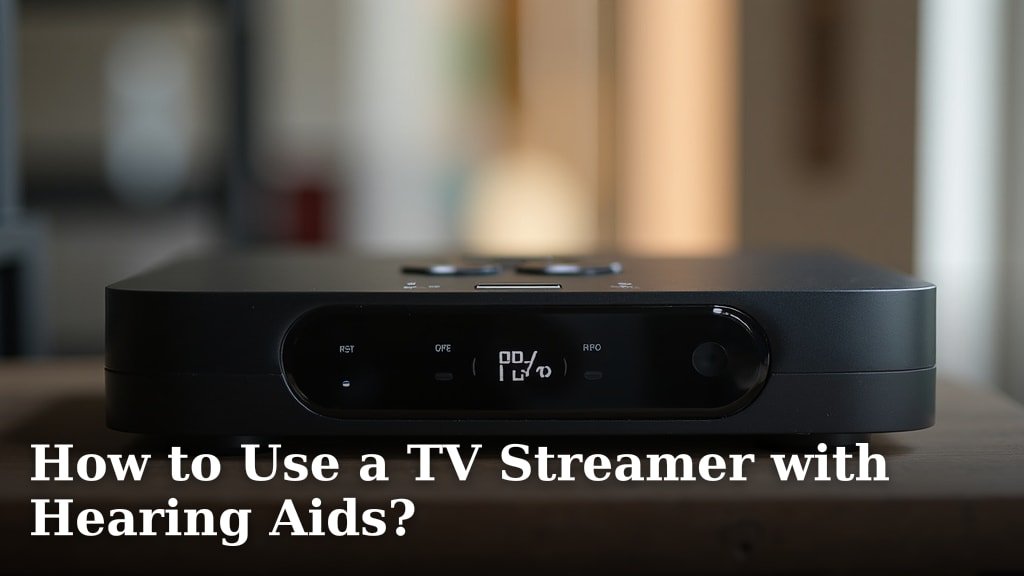
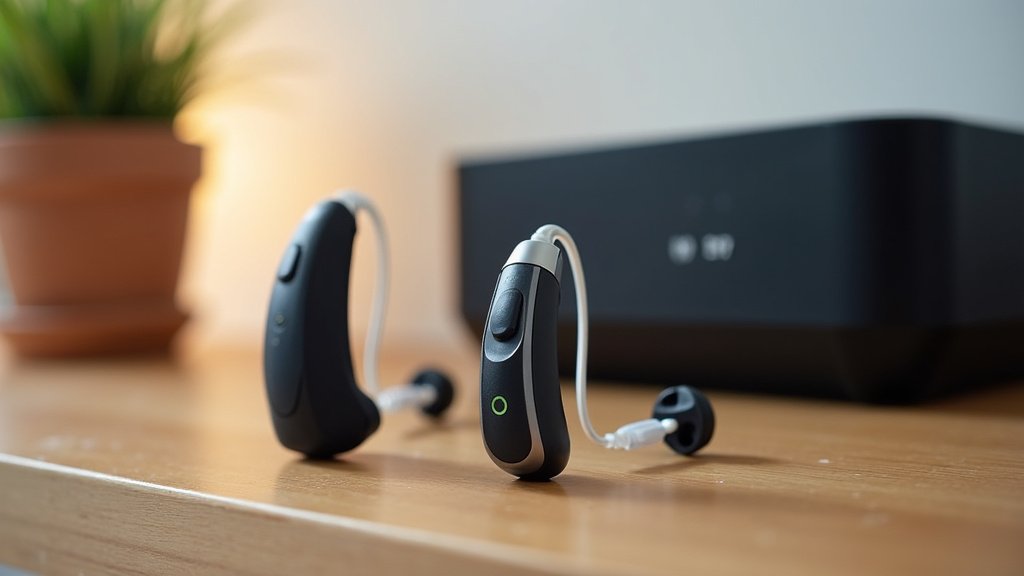
A TV streamer is a small device that connects to your television. Learn how to use a TV streamer with hearing aids. It then sends the audio signal directly to your hearing aids. This bypasses your TV’s speakers. It’s like a dedicated audio channel just for you. This direct connection means you get a much clearer and more consistent sound. You can also explore hearing aid integration with phones for enhanced communication.
Checking for Compatibility
The first step is always to check if your specific hearing aids and TV streamer are designed to work together. You can usually find this information in the user manuals for both devices. If you’re unsure, your audiologist is an excellent resource. They can tell you what kind of streaming technology your hearing aids use. Many manufacturers also list compatible devices on their websites.
Research and found that compatibility often depends on the streaming protocol used. Some hearing aids use universal Bluetooth, while others use a specific system from the hearing aid brand. Your TV streamer needs to support that same protocol.
The Pairing Process: Step-by-Step
Once you’ve confirmed compatibility, it’s time to pair. The exact steps can vary slightly depending on your hearing aid brand and TV streamer model. However, the general idea is the same across most devices. We’ll cover the most common methods.
Preparing Your Devices
First, make sure your hearing aids are charged. Low battery can interrupt the pairing process. Also, ensure your TV streamer is properly connected to your TV and powered on. Check the streamer’s manual for initial setup instructions if you haven’t already done this.
You’ll want to be close to your TV streamer during the pairing process. This ensures a strong signal. Keep your hearing aids within a few feet of the streamer. This distance is often recommended for a stable connection.
Initiating Pairing Mode on Your Hearing Aids
This is where things can differ the most. Many hearing aids have a specific way to enter pairing mode. This often involves pressing and holding a small button on the hearing aid itself. Other devices might require you to use a smartphone app. The app can put your hearing aids into pairing mode.
Some newer hearing aids might automatically enter pairing mode when they are powered on after being reset or when they are out of range of their paired device. Always consult your hearing aid’s manual. It will have the precise instructions for your model. Think of this like finding the “on” switch for pairing.
Initiating Pairing Mode on Your TV Streamer
Your TV streamer also needs to be in pairing mode. This signals to your hearing aids that it’s ready to connect. Similar to hearing aids, this usually involves pressing a button on the streamer. Sometimes, it’s a small, almost hidden button.
Look for an indicator light on the streamer. It often flashes or changes color when it’s in pairing mode. This light is your cue that it’s actively searching for devices. Again, the user manual is your best friend here. It will detail exactly how to activate pairing on the streamer.
Completing the Connection
With both devices in pairing mode, they should now be able to find each other. Your hearing aids will search for available devices. You should see your TV streamer appear on a list within your hearing aid app or on a display if your hearing aids have one.
Select your TV streamer from the list. You might be prompted to confirm the pairing on either your hearing aid app or sometimes on your TV screen. Once confirmed, you should hear a confirmation sound or tone in your hearing aids. This indicates a successful connection.
Troubleshooting Common Pairing Issues
What if it doesn’t work on the first try? Don’t worry, this is common. Several small issues can prevent a successful pairing. Let’s look at what might be going wrong and how to fix it.
Is Anything Blocking the Signal?
Physical obstructions can sometimes interfere with the wireless signal. Make sure there are no large metal objects between your hearing aids and the TV streamer. Even a thick wall could potentially weaken the signal. Keep the devices relatively close.
Are Devices Already Paired Elsewhere?
Many hearing aids and streamers can pair with multiple devices. However, they often can only actively connect to one at a time. If your hearing aids are already connected to your phone via Bluetooth, they might not be able to connect to the TV streamer. You may need to temporarily disconnect your hearing aids from other devices.
We found that sometimes the hearing aids are still trying to connect to a previously paired phone or tablet. Turning off Bluetooth on those other devices temporarily can help ensure the connection goes to the TV streamer. This is a good first step if you’re having trouble. If you’re having trouble, our guide on fixing hearing aid app and Bluetooth issues explains how to disconnect from other devices.
Restarting and Retrying
A simple restart can often solve many technical glitches. Turn off your hearing aids and the TV streamer. Wait for about 30 seconds, then turn them back on. Ensure they are both in pairing mode again. Then, try the pairing process one more time.
Firmware Updates
Sometimes, pairing issues can be resolved with a software update. Check if there are any available firmware updates for your hearing aids through their app. Similarly, check the TV streamer manufacturer’s website for any updates. Keeping your devices updated can prevent unexpected problems. Many experts recommend keeping devices updated for optimal performance (CDC).
Alternative Connection Methods
While direct Bluetooth pairing is common, some systems offer other ways to connect. This is good to know if Bluetooth isn’t cooperating. These methods often ensure a very stable link.
Using a Direct Audio Cable
Some TV streamers have an audio input jack. You can connect your TV directly to the streamer using a standard audio cable (often a 3.5mm jack). This creates a wired connection. It bypasses the need for wireless pairing altogether. This can be a lifesaver if wireless is proving difficult. If the TV picture and sound drift apart, see how to troubleshoot an out-of-sync TV streamer.
Proprietary Connectors
Certain hearing aid brands use their own specific docking stations or connectors. These might come with your TV streamer or hearing aids. These proprietary systems are designed to work exclusively with their devices. They often offer a very reliable connection. Follow the specific instructions provided with these accessories.
Optimizing Your TV Audio Experience
Once paired, you’re almost there! A few final tweaks can make your TV listening experience even better. You’ll be enjoying your shows with new clarity in no time.
Adjusting Volume Levels
One of the biggest benefits is independent volume control. You can usually adjust the volume of the streamed audio directly from your hearing aid app or by using physical buttons on your hearing aids. This means you can turn the volume up as loud as you need without bothering anyone else in the room. Conversely, if someone else wants to listen at a different volume, they can adjust the TV’s speakers independently (if they aren’t muted).
Balancing Streamed Audio and Ambient Sound
Many hearing aids allow you to adjust the balance between the streamed TV audio and the sounds around you. This feature, sometimes called “Mix” or “Environmental Sound,” is very useful. It lets you hear the TV clearly while still being aware if someone calls your name. You can typically control this balance in your hearing aid app. Experiment to find what works best for you.
Checking Your Settings
Explore the settings in your hearing aid app. You might find options for customizing sound profiles for TV watching. Some apps allow you to boost frequencies that help with speech understanding. You can often save these settings as a program for easy access. This personalization is key to getting the most out of your devices.
Quick Checklist for Successful Pairing
Here’s a quick rundown to make sure you’ve covered all your bases:
- Confirm compatibility between your hearing aids and TV streamer.
- Ensure both devices have sufficient battery charge.
- Place hearing aids and streamer close together.
- Follow exact pairing instructions for both devices.
- Restart devices if pairing fails initially.
- Consult your audiologist or manuals if problems persist.
Conclusion
You’ve now learned how to connect your hearing aids to a TV streamer for a much clearer audio experience. Remember, compatibility is key, and the pairing process is similar to other Bluetooth devices. Don’t get discouraged if it takes a try or two; troubleshooting steps are there to help you. Take the time to adjust your settings, like the volume balance, to truly optimize your sound. Your next step is to gather your devices and follow these steps. You’ll be enjoying your favorite shows with improved hearing in no time!
Frequently Asked Questions
What if my TV doesn’t have Bluetooth?
Many TVs don’t have built-in Bluetooth. In this case, your TV streamer will connect to your TV via an audio cable (like an optical or headphone jack). The streamer then uses its own wireless technology to connect to your hearing aids. This bypasses your TV’s lack of Bluetooth.
Can I pair my hearing aids with multiple TV streamers?
Yes, most hearing aids can be paired with multiple devices. However, they usually can only connect to one at a time. You’ll need to actively disconnect from one device before connecting to another. Check your hearing aid’s app for managing paired devices.
How do I know if the pairing was successful?
You’ll typically hear a confirmation tone or sound directly in your hearing aids once pairing is complete. Your hearing aid app might also show a “connected” status for your TV streamer. If you can hear TV audio through your hearing aids, it’s a good sign!
Is it normal for the TV streamer to get warm?
It’s not uncommon for electronic devices like TV streamers to get slightly warm during use. This is usually normal and doesn’t indicate a problem. However, if it feels excessively hot to the touch, disconnect it and consult your user manual or audiologist.
Do I need a special app for my hearing aids to pair with a TV streamer?
Many modern hearing aids rely on a smartphone app for pairing and controlling advanced features, including TV streaming. Some older models might use buttons on the hearing aids themselves. Always refer to your specific hearing aid’s manual to know what’s required.