How to Use a TV Streamer with Hearing Aids?
On this page (7 sections)
Yes, you can absolutely use a TV streamer with hearing aids to hear your favorite shows more clearly. These devices send audio directly from your TV to your hearing aids, reducing background noise and making dialogue much easier to understand. It’s a fantastic way to enjoy your entertainment without missing a single word, making your TV time more enjoyable and accessible.
Many people struggle to hear TV dialogue, even with hearing aids. A TV streamer acts like a personal listening device. It bypasses your room’s acoustics, which can often muddle sound. This means you get a clearer, more direct audio stream straight to your ears, which we found makes a huge difference for many users. It’s like having a front-row seat for every conversation on screen.
- Connect your TV directly to your hearing aids.
- Hear dialogue clearly without background noise.
- Enjoy TV shows and movies more fully.
- Simple setup for a better listening experience.
Ready to transform your TV watching? Let’s walk through exactly how easy it is to set up and start using your TV streamer with your hearing aids.
Getting the Best TV Sound with Your Hearing Aids
Watching TV should be relaxing, right? But if you’re straining to hear dialogue or getting overwhelmed by background noise, it’s anything but. Many people with hearing loss find that even with hearing aids, the TV experience isn’t ideal. This is where a TV streamer comes in, acting as your personal sound technician for all things entertainment.
It might sound techy, but using a TV streamer is surprisingly straightforward. Think of it like getting a direct phone line for your TV’s sound. This stream bypasses the room’s echoes and ambient sounds. You’ll enjoy crystal-clear audio delivered straight to your hearing aids. It’s a simple setup that makes a world of difference.
Understanding How TV Streamers Work
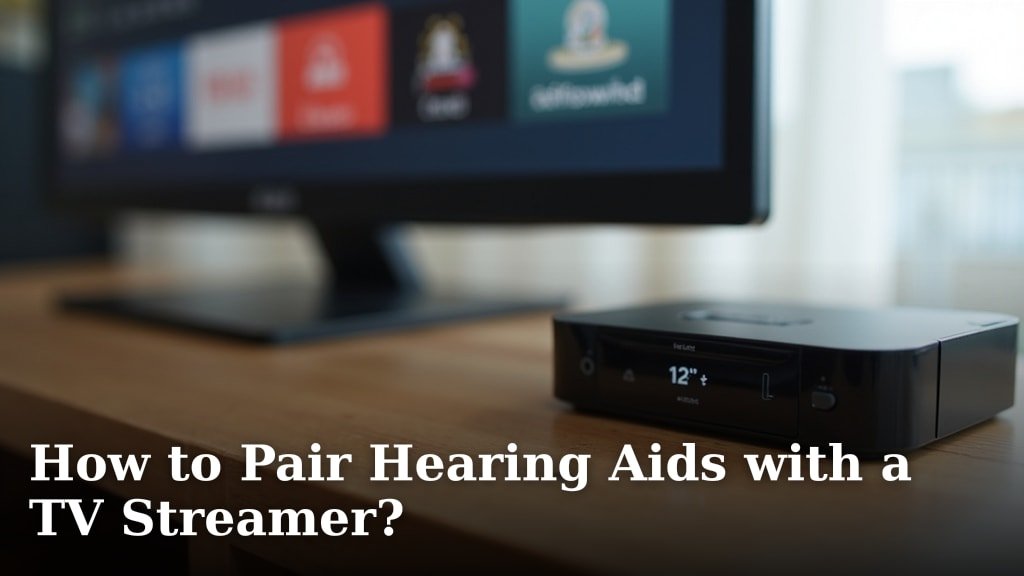
A TV streamer is a small device that connects to your television. It then wirelessly sends the TV’s audio signal directly to your compatible hearing aids. It’s like a private, enhanced audio channel just for you. Many modern hearing aids are designed to work with these streamers right out of the box. You’ve learned how simple it is to connect a TV streamer and enjoy your favorite shows with crystal-clear audio directly to your hearing aids.
The Technology Behind the Clarity
Most streamers use Bluetooth technology or a proprietary wireless protocol. If you are comparing models, see our guide to Bluetooth streamers for hearing aids. Bluetooth is a common standard, so many devices can connect to a wide range of TVs and audio equipment. Some systems might use a base station that plugs into your TV. This base then sends the audio signal to your hearing aids.
Research shows that direct audio streaming significantly improves speech intelligibility in noisy environments. This is exactly what a TV streamer helps achieve for your home TV viewing (NCBI). It’s a way to reclaim your entertainment without constantly asking, “What did they say?”
Why This Matters for Your Hearing
Your hearing aids are already working hard to help you. However, TV sound is often tricky. It can be compressed, have varying volume levels, and contain lots of background effects. A streamer delivers a cleaner, more consistent signal. This means your hearing aids don’t have to work as hard to interpret the sound. They receive a higher quality input, leading to a better output.
Setting Up Your TV Streamer: A Step-by-Step Guide
The setup process can vary slightly depending on your specific hearing aid brand and model, as well as your TV. But the general steps are quite similar. We’ll walk you through the most common setup methods.
Step 1: Identify Your Connection Options
First, you need to connect the streamer to your TV. Look at the back or side of your television for audio output ports. Common ports include:
- HDMI ARC/eARC: This is often the best option if your TV supports it. It carries high-quality audio and is usually the simplest to set up.
- Optical Audio (Toslink): A digital connection that provides excellent sound quality. You’ll likely find a small, square port with a red light.
- 3.5mm Headphone Jack: This is a common analog connection, similar to what you’d find on a portable music player.
- RCA Audio (Red and White Jacks): Older TVs might only have these analog connections.
Your TV streamer will come with cables for these different options. It’s important to choose the best quality connection your TV and streamer support for the clearest sound.
Step 2: Connect the Streamer to Your TV
Once you’ve identified the ports, it’s time to connect. If using HDMI ARC, plug one end of the HDMI cable into your TV’s HDMI ARC port and the other into the streamer’s corresponding port. For optical, use the optical cable. For a headphone jack or RCA, use the appropriate cables. You might need to consult your TV’s manual to ensure you’re using the correct audio output setting.
Many experts suggest using HDMI ARC or optical connections for the best performance. This ensures you’re getting a digital audio signal, which is generally less prone to interference and degradation than analog signals. It’s like choosing a paved highway over a bumpy dirt road for your sound.
Step 3: Power Up and Pair Your Devices
After connecting, plug in the power adapter for your TV streamer. Then, turn on your TV. Next, you’ll need to pair hearing aids with TV streamers. This process usually involves putting your hearing aids into pairing mode and then initiating pairing on the streamer.
Pairing Mode: To put your hearing aids in pairing mode, you typically need to open and close the battery doors on your BTE (behind-the-ear) hearing aids, or turn them off and on again if they have rechargeable batteries. Always check your hearing aid manual for the exact steps.
Initiating Pairing: Your streamer will have a button or a specific sequence to start the search for your hearing aids. Often, you’ll press and hold a button on the streamer until a light flashes, indicating it’s looking for devices. Once your hearing aids are detected, they will automatically connect.
We found that this pairing step can sometimes be a bit finicky. If it doesn’t work the first time, don’t get discouraged! Simply try putting your hearing aids back into pairing mode and initiating the pairing on the streamer again. Keeping both devices close together can help with a successful connection.
Step 4: Test the Audio Stream
Once paired, start playing something on your TV. You should now hear the audio directly through your hearing aids. If you don’t, here are a few things to check:
- Volume Control: Make sure the volume on your TV is turned up to a reasonable level. Sometimes, if the TV volume is too low, you might not hear the streamer. Also, check the volume on your hearing aids themselves; you might need to adjust them or the streamer’s volume.
- Hearing Aid Settings: Your hearing aids might have different programs or settings. Ensure you’re in the program that’s designed for TV streaming or assistive listening devices. Your audiologist can help you set this up.
- TV Audio Output Settings: Go back into your TV’s settings menu. You might need to manually select “HDMI ARC,” “Optical,” or “External Speaker” as your audio output.
Many users find that having a dedicated program on their hearing aids for TV streaming is incredibly helpful. This program can automatically adjust settings for optimal TV sound, so you don’t have to fiddle with controls every time you sit down to watch.
Maximizing Your TV Streaming Experience
Once everything is set up, you’ll want to make sure you’re getting the most out of your new setup. Here are a few tips and tricks we’ve found helpful for many users.
Adjusting Volume and Settings
Most TV streamers allow you to control the volume of the audio streamed to your hearing aids independently from your TV’s speakers. This is a fantastic feature! It means you can set the streamer volume to a comfortable level for yourself without affecting anyone else watching with you. Some streamers even have a “mix” function, allowing you to blend the streamed audio with the room microphone from your hearing aids. This way, you can still hear ambient sounds or conversations if needed.
Your audiologist can help you customize these settings. They can ensure the volume levels are safe and appropriate for your hearing. They can also program specific settings for different types of audio, like movies versus news broadcasts.
Understanding Compatibility
It’s essential to ensure your TV streamer is compatible with your hearing aids. Our guide to the best TV streamers for hearing aids can help with comparisons. Most hearing aid manufacturers offer their own brand of TV streamers, designed to work seamlessly with their devices. Some universal streamers are also available, but it’s always best to check the compatibility list provided by the manufacturer.
Here’s a quick look at common compatibility types:
| Streamer Type | Hearing Aid Brands Often Compatible | Connection Methods |
|---|---|---|
| Manufacturer-Specific | Phonak, Oticon, Signia, Widex (usually their own brand) | Proprietary Wireless, Bluetooth |
| Universal/Third-Party | Many brands via Bluetooth or specific adapters | Bluetooth, 3.5mm Audio Jack, Optical |
Checking compatibility beforehand can save you a lot of hassle. If you’re unsure, your audiologist or hearing care professional is your best resource. They can guide you to the right streamer for your specific hearing aids.
Troubleshooting Common Issues
Occasionally, you might run into a snag. Here are a few common problems and their solutions:
- No sound: Double-check all cable connections, ensure the streamer is powered on, and verify that your hearing aids are correctly paired and in the right program.
- Intermittent sound or dropouts: This could be due to interference. Try moving the streamer closer to your hearing aids or removing potential sources of interference (like Wi-Fi routers or microwaves).
- Audio lag (lip-sync issues): This is more common with Bluetooth. If possible, use a wired connection like HDMI ARC or optical. Some streamers and hearing aids have settings to help reduce lip-sync delay.
- Volume too low or too high: Adjust the volume on the streamer and your hearing aids. Your audiologist can also adjust the default streaming gain.
Remember to consult your streamer and hearing aid manuals for specific troubleshooting steps. They often have detailed guides for common issues.
A Checklist for a Great TV Experience
To make sure you’re all set for crystal-clear TV sound, run through this quick checklist:
- Is your TV streamer powered on and connected to your TV?
- Are your hearing aids turned on and in pairing mode?
- Have you successfully paired your hearing aids with the streamer?
- Is the correct audio output selected on your TV settings?
- Can you hear the TV audio clearly through your hearing aids?
- Have you checked or adjusted the volume levels on both the streamer and your hearing aids?
Completing these steps should get you well on your way to enjoying your favorite shows with newfound clarity. It’s a rewarding feeling when you can finally hear every detail!
Conclusion
You’ve learned how simple it is to connect a TV streamer and enjoy your favorite shows with crystal-clear audio directly to your hearing aids. By following these steps, you can say goodbye to straining to hear dialogue and welcome a more immersive entertainment experience. Remember to check your connections and pairing, and don’t hesitate to consult your audiologist for personalized settings.
Your next step is to check your hearing aid compatibility and gather the right cables. Take that step today to start enjoying TV sound like never before!
Frequently Asked Questions
Can I use a TV streamer with any hearing aids?
Generally, most modern hearing aids are designed to be compatible with TV streamers. However, compatibility can vary by brand and model. It’s best to check with your hearing aid manufacturer or audiologist to confirm which streamers will work with your specific devices.
Will using a TV streamer affect the sound for others watching TV with me?
No, not usually. The TV streamer sends audio directly to your hearing aids. This means you can set your own comfortable volume without changing the volume of the TV speakers for anyone else in the room.
What is the difference between a Bluetooth streamer and a proprietary streamer?
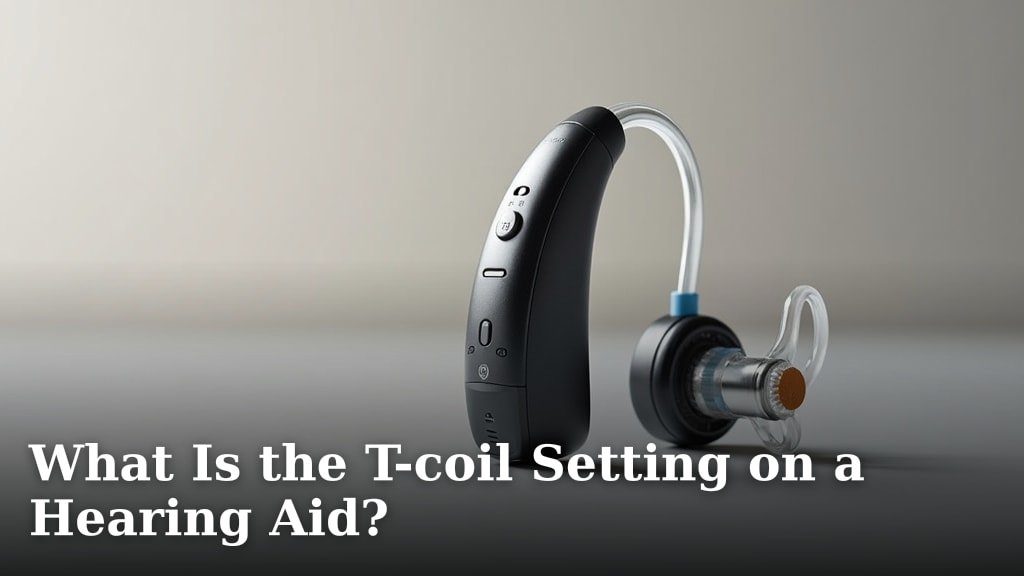
Bluetooth streamers connect using the standard Bluetooth protocol, offering wider compatibility. Some hearing aids also use a telecoil to receive audio through a compatible hearing loop. Proprietary streamers use a specific wireless signal from your hearing aid manufacturer, which often provides a more stable connection and sometimes additional features designed just for their hearing aids.
How do I know if my TV supports HDMI ARC for the streamer?
Look for an HDMI port on your TV labeled “ARC” or “eARC.” You can also check your TV’s user manual or the manufacturer’s website for specifications. Using HDMI ARC is often the simplest and highest-quality connection method.
What if I experience a delay between the picture and the sound?
This is known as TV streamer lip-sync delay and can sometimes happen with wireless audio transmission. If possible, using a wired connection like HDMI ARC or optical audio can reduce this. Some streamers and hearing aids also have settings to help minimize audio lag.