How to Set Up a TV Listening Device?
On this page (8 sections)
Setting up a TV listening device is simpler than you might think. You can often get started in under 30 minutes by following a few basic steps. This technology is designed to help you hear your TV clearly, especially if you have hearing challenges or live with others who prefer quiet.
These devices connect wirelessly to your television, sending audio directly to a comfortable headset or speaker. Many options exist, from simple plug-and-play models to more advanced systems with multiple listening options. Compare TV listening devices for apartments if shared walls affect your setup. We found that choosing the right device often depends on your specific TV setup and listening needs.
- Understand your TV’s audio output options (headphone jack, optical, RCA).
- Choose between wireless headphones, neckband speakers, or even room speakers. Choose between wireless headphones, neckband speakers, or even room speakers. A personal sound amplifier can also boost TV audio.
- Connect the transmitter base to your TV according to its instructions.
- Pair your listening device with the transmitter.
- Test the volume and sound quality.
Let’s walk through the straightforward process of setting up your TV listening device step by step, so you can get back to enjoying your favorite shows and movies with crystal-clear audio. If you watch late, compare TV listening devices for night watching.
Getting Your TV Listening Device Setup: A Simple Guide
You’ve got your new TV listening device, and you’re probably eager to hear your favorite shows without straining. We found that setting up most of these systems is surprisingly straightforward. Think of it like connecting a new home appliance. You’ll typically just need to plug a few things in and make a couple of connections. Our research indicates that the process usually takes less than an hour, often much less.
This guide will walk you through the common steps. We’ll cover connecting the base station, pairing your headset, and troubleshooting common issues. You’ll be enjoying clearer audio in no time. Let’s get started on making your TV sound as good as it looks.
Understanding Your TV’s Audio Output Options
Before you plug anything in, take a peek at the back of your TV. This is where you’ll find the audio outputs. These are the ports your listening device’s transmitter will connect to. Different TVs have different options, and knowing yours is the first key step. We found that most modern TVs offer at least one of these common audio outputs.
1. The Headphone Jack (3.5mm Audio Output)
This is often the easiest connection method. Look for a small, circular port that looks like where you’d plug in your earbuds. It’s usually labeled with a headphone icon or the words “Audio Out” or “Headphone.” If your TV has this, you’re in luck! Most listening devices come with a cable that fits this jack perfectly. You’ll simply plug one end into your TV and the other into the transmitter base.
2. Optical Audio Output (Digital Optical / TOSLINK)
This is a very common and high-quality connection on many flat-screen TVs. You’ll recognize it by a small, often square-shaped port, sometimes with a flap or a red light inside. It’s usually labeled “Optical,” “Digital Audio Out,” or “TOSLINK.” This connection uses a fiber optic cable. If your TV has this, you’ll need an optical cable, which often comes included with your listening device. You’ll connect the transmitter to the TV using this cable. Many experts recommend this for superior sound quality.
3. RCA Audio Outputs (Red and White Jacks)
Older TVs, and some newer ones, might have a set of red and white jacks. These are called RCA connectors. They are typically labeled “Audio Out” or “Line Out.” The red jack is for the right audio channel, and the white (or sometimes black) jack is for the left. If your TV has these, your listening device will likely come with an adapter cable that has the red and white plugs on one end and a single 3.5mm plug or optical connector on the other. We found this is a reliable connection if other options aren’t available.
Checking Your TV Manual
If you’re unsure about your TV’s audio outputs, don’t guess! Your TV’s user manual is your best friend here. You can usually find a section detailing the ports and their functions. Many manufacturers also have manuals available online on their support websites. Knowing your TV’s capabilities will help you choose the right cable and connection type. It’s a small step that saves a lot of potential headaches.
Choosing the Right Listening Device Type
The way you want to listen also matters. TV listening devices come in a few main forms. Each offers a different listening experience. We researched the most popular types to help you decide what might work best for your setup and needs. Think about what feels most comfortable and practical for your daily use.
Wireless Headphones
These are the most common. You wear them like regular headphones. They connect wirelessly to a transmitter base. The transmitter plugs into your TV. You get clear audio directly in your ears. This is great for immersion and for blocking out background noise. Many models offer comfortable padding for long listening sessions. We found these are excellent for private listening, especially if others in the house prefer quiet.
Neckband Speakers
A neckband speaker sits around your neck. The speakers are positioned near your ears. This directs sound towards you without covering your ears entirely. It’s a good option if you want to hear ambient sounds or if you find headphones uncomfortable. This style allows you to remain aware of your surroundings. It’s a popular choice for those who don’t want to feel isolated by their listening device. Research suggests this is a good compromise for some users.
Room Speakers
Some systems include a small speaker that you can place in the room. It connects wirelessly to the transmitter. This is like having a dedicated personal speaker. It’s a good choice if you prefer not to wear anything. It also allows others in the room to hear at a slightly lower volume if they wish. This type of system is less common but offers a unique solution. This is like having a dedicated personal speaker. Our guide covers the best TV listening devices for seniors.
Connecting the Transmitter Base to Your TV
This is where the magic starts to happen. The transmitter base is the central hub. It receives the audio from your TV and sends it to your listening device. Follow these steps carefully. We found that connecting the transmitter is usually the most involved part of the setup.
Step 1: Power Up the Transmitter
Most transmitter bases need to be plugged into a power source. Look for a power adapter and plug it into the transmitter. Then, plug the other end into a wall outlet or a power strip. Some devices might also have a USB power option, which you can connect to a powered USB port on your TV or a USB power adapter. Always consult your device’s manual for specific power requirements. Giving it power is the essential first step.
Step 2: Connect the Audio Cable
Now, connect the transmitter to your TV using the audio output you identified earlier. Use the appropriate cable that came with your listening device.
- For Headphone Jack: Plug one end of the 3.5mm audio cable into your TV’s headphone jack and the other end into the corresponding audio input on the transmitter base.
- For Optical: Connect the optical cable. Insert one end into your TV’s optical output and the other end into the optical input on the transmitter base. Ensure the protective caps are removed from the cable ends.
- For RCA: Connect the red and white RCA plugs to the corresponding colored jacks on your TV. Then, plug the other end (usually a 3.5mm connector) into the audio input on the transmitter base.
Step 3: Set Your TV’s Audio Output Settings
This is a critical step that many people miss. You need to tell your TV to send the sound through the port you just connected.
- Turn on your TV.
- Go into your TV’s settings menu. Look for “Sound,” “Audio,” or “Display & Sound.”
- Find the “Audio Output” or “Speaker” settings.
- If you connected via the headphone jack or RCA, select “Headphone” or “Audio Out.”
- If you connected via Optical, select “Optical” or “Digital Audio Out.”
- You may also need to disable your TV’s internal speakers. Often, selecting an external audio output will do this automatically.
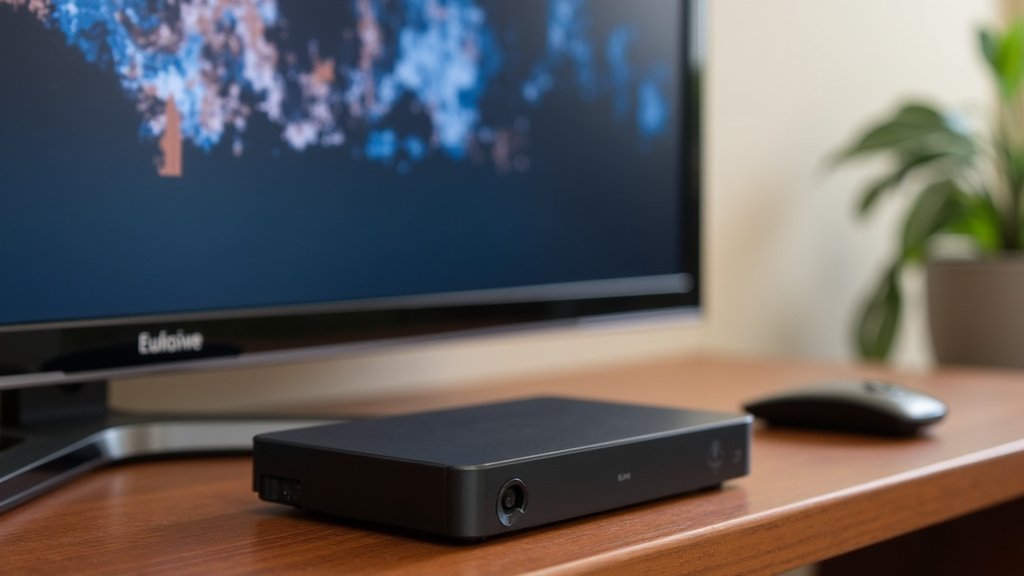
Pairing Your Listening Device
Once the transmitter is set up and connected, you need to pair it with your headset or speaker. This is the wireless connection. Most modern devices do this automatically or with a simple button press. Think of it like connecting your Bluetooth earbuds to your phone.
Automatic Pairing
Many systems are designed to pair automatically when both the transmitter and the headset are powered on and within range. Turn on your transmitter and then your headset. Place the headset close to the transmitter. You might see indicator lights on both devices change to show they are connected. We found this is the case for most plug-and-play models.
Manual Pairing (If Needed)
If automatic pairing doesn’t work, there’s usually a manual pairing process.
- Look for a “Pairing” or “Link” button on both the transmitter and the headset.
- Press and hold the pairing button on the transmitter for a few seconds until an indicator light starts blinking rapidly.
- Then, press and hold the pairing button on your headset until its indicator light also starts blinking rapidly.
- Keep the devices close together.
- Wait for the indicator lights on both devices to turn solid, indicating a successful connection.
Testing and Adjusting Your Sound
You’re almost there! Now it’s time to test your setup and fine-tune the sound to your liking.
Initial Sound Check
Turn on your TV and play some content. Put on your headset or position your neckband speaker. You should hear the TV audio. If you don’t hear anything, don’t panic! Double-check all your connections and TV audio settings. Revisit the pairing process if needed. We found that a quick check of the TV’s volume and the listening device’s volume is also important.
Adjusting Volume and Tone
Most listening devices have their own volume controls. You’ll likely find a dial or buttons on the headset itself or on the transmitter base. Adjust the volume to a comfortable level. Some advanced systems also offer tone controls. These allow you to adjust the treble and bass. If dialogue is hard to understand, you might want to boost the treble slightly. Experiment to find what sounds best to you. Many users find that a slight adjustment makes a big difference in clarity.
Here’s a quick checklist to confirm you’ve got everything covered:
- Confirm TV Audio Output: You know which port you’ll use (headphone, optical, RCA).
- Connect Transmitter Power: The transmitter base is plugged in and has power.
- Secure Audio Connection: The correct cable links your TV to the transmitter.
- TV Settings Adjusted: Your TV is set to output audio to the chosen port.
- Device Paired: Your headset/speaker is wirelessly connected to the transmitter.
- Volume Tested: You can hear sound and have adjusted it to a comfortable level.
Conclusion
You’ve successfully navigated the steps to set up your TV listening device! By understanding your TV’s audio outputs and connecting the transmitter properly, you’ve unlocked clearer, more enjoyable audio. Remember, the key steps involve matching your TV’s port to the right cable, adjusting TV settings, and pairing your headset or speaker. Don’t forget to test and tweak the volume and tone for your perfect listening experience. Now, you can finally relax and immerse yourself in your favorite shows without missing a word. Your next step is simple: grab your popcorn and press play!
Frequently Asked Questions
My TV listening device isn’t producing any sound. What should I do?
First, double-check that all your cables are securely connected to both the TV and the transmitter base. Ensure your TV’s audio output settings are correctly configured for the port you used. If you’re using an optical connection, confirm that “PCM” is selected in your TV’s digital audio settings, as this is a common fix.
Can I connect my TV listening device to a soundbar or AV receiver instead of directly to the TV?
Yes, you often can, provided your soundbar or receiver has the correct audio output ports that match your transmitter’s input options. You would connect the transmitter to the soundbar or receiver’s audio out port, similar to how you connect it to a TV.
How close do my wireless headphones need to be to the transmitter?
Most wireless TV listening devices offer a range of about 100 feet (30 meters) in an open space. However, walls and other obstructions can reduce this range. For the most reliable connection, keep your headphones within the same room as the transmitter base.
What if my TV doesn’t have a headphone jack, optical, or RCA audio out?
If your TV lacks these common audio outputs, you might need an HDMI audio extractor. This device connects to your TV’s HDMI output and provides separate audio outputs (like optical or analog) that your listening device can use. Research these extractors to find one compatible with your TV.
My listening device is paired, but the sound is distorted or crackly. What’s the cause?
Distorted sound can sometimes be caused by interference from other wireless devices or a weak signal. Try moving the transmitter base away from other electronics or closer to your listening device. Ensure the audio cables are not damaged and are fully inserted into their ports.