How to Sync Hearing Aids to a Phone?
On this page (8 sections)
- Connecting Your Hearing Aids to Your Smartphone
- Getting Your Hearing Aids Ready for Pairing
- Step-by-Step: Pairing Your Hearing Aids to Your Phone
- Troubleshooting Common Pairing Issues
- Maximizing Your Connected Hearing Aid Experience
- A Quick Checklist for Successful Pairing
- Conclusion
- Frequently Asked Questions
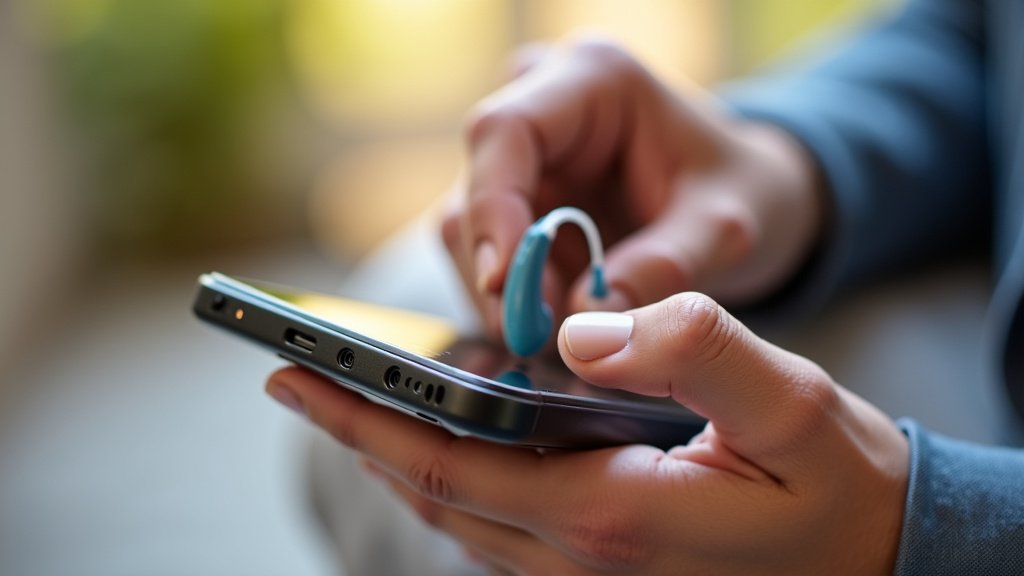
Yes, you can absolutely sync your hearing aids to your phone! It’s often a straightforward process that unlocks a world of new features. Many modern hearing aids use Bluetooth technology to connect, making it surprisingly easy to get started.
Connecting your hearing aids to your smartphone can transform your listening experience. You can often stream music, take calls directly, and even adjust your hearing aid settings through a dedicated app. We found that this connection is a major convenience for many users.
- Syncing hearing aids to your phone is possible.
- It usually involves Bluetooth technology.
- Benefits include streaming audio and call handling.
- You can often control settings via an app.
- It’s a simple way to enhance your hearing experience.
Ready to make your hearing aids work smarter, not harder, with your phone? Let’s walk through exactly how to connect them step by step.
Connecting Your Hearing Aids to Your Smartphone
Yes, you can absolutely sync your hearing aids to your phone! It’s often a straightforward process that unlocks a world of new features. Many modern hearing aids use Bluetooth technology to connect, making it surprisingly easy to get started.
Connecting your hearing aids to your smartphone can transform your listening experience. You can often stream music, take calls directly, and even adjust your hearing aid settings through a dedicated app. We found that this connection is a major convenience for many users.
Getting Your Hearing Aids Ready for Pairing
Before you dive into pairing, there are a few things you should do. This ensures a smooth and successful connection. Think of it like preparing your ingredients before you start cooking.
Check Your Hearing Aid Compatibility
First things first, make sure your hearing aids are designed for smartphone connectivity. Most modern hearing aids come with Bluetooth built-in. If your hearing aids are older, they might not have this capability. You can usually find this information in your hearing aid manual or by checking the manufacturer’s website. We found that many hearing aid manufacturers list compatibility details clearly.
Ensure Your Phone is Ready
Your smartphone also needs to be ready for the task. Make sure your phone’s Bluetooth feature is turned on. You can typically find this in your phone’s settings menu, often near Wi-Fi and other connection options. For most smartphones, this is a quick toggle switch.
Charge Your Devices
It’s always a good idea to have both your hearing aids and your phone sufficiently charged. A low battery can interrupt the pairing process. We’ve seen instances where devices disconnect mid-pairing due to a dead battery. So, give them a good charge before you start.
Download the Manufacturer’s App
Many hearing aid manufacturers offer a dedicated smartphone app. This app is key for controlling settings, streaming audio, and sometimes even for the pairing process itself. You’ll usually find the app’s name in your hearing aid manual. Search for it in your phone’s app store (Google Play Store for Android or the App Store for iOS). We recommend downloading it before you begin pairing.
Step-by-Step: Pairing Your Hearing Aids to Your Phone
Now that your devices are prepped, let’s walk through the actual pairing process. It’s usually quite similar across different phone and hearing aid brands.
Step 1: Put Your Hearing Aids in Pairing Mode
This is the most critical step. How you do this varies by hearing aid model. Some hearing aids automatically enter pairing mode when you open their battery doors or turn them on. Others might require you to press and hold a small button on the hearing aid. Your manual is your best friend here. You might hear a specific sound or see a light indicating they are ready to pair. We found that checking the manual first saves a lot of frustration.
Step 2: Open Your Phone’s Bluetooth Settings
On your smartphone, go to the Bluetooth settings. This is where your phone searches for and connects to nearby Bluetooth devices. On iPhones, you’ll find it under Settings > Bluetooth. On Android phones, it’s typically under Settings > Connected devices > Bluetooth.
Step 3: Scan for New Devices
Once in the Bluetooth settings, you should see an option to “Scan,” “Pair new device,” or something similar. Tap this to have your phone look for available Bluetooth devices. Your phone will then display a list of nearby devices that are in pairing mode. You should see your hearing aids appear on this list, usually identified by their brand name or model number.
Step 4: Select Your Hearing Aids to Connect
From the list of available devices, tap on the name that corresponds to your hearing aids. Your phone will then attempt to connect. You might see a confirmation prompt on your phone asking you to confirm the pairing. This is normal and helps ensure you’re connecting to the correct device.
Step 5: Confirm and Complete Pairing
If prompted, confirm the pairing request on both your phone and potentially your hearing aids. Some hearing aids might beep or give an audio cue to confirm the connection. Once successfully paired, your hearing aids should appear under “Paired Devices” or “My Devices” in your phone’s Bluetooth settings. They should also indicate “Connected.” Congratulations, you’ve successfully synced your hearing aids!
Step 6: Connect to the Hearing Aid App (If Applicable)
If you downloaded the manufacturer’s app, open it now. The app should detect that your hearing aids are connected via Bluetooth. It might guide you through a final setup process within the app. This could involve naming your hearing aids or calibrating them to your specific needs. We’ve found that using the app significantly enhances the hearing aid experience.
Troubleshooting Common Pairing Issues
Sometimes, technology doesn’t cooperate perfectly on the first try. If you run into problems, don’t worry! Many issues have simple solutions.
Hearing Aids Not Appearing in the List
If your hearing aids don’t show up in your phone’s Bluetooth scan, double-check that they are indeed in pairing mode. Refer back to your manual for the correct procedure. Also, ensure your phone’s Bluetooth is on and that you are close enough to the hearing aids.
Pairing Fails or Disconnects
If pairing fails or the connection keeps dropping, try restarting both your phone and your hearing aids. Sometimes, a simple reboot clears temporary glitches. You might also want to “forget” the hearing aids from your phone’s Bluetooth list and try pairing them again from scratch. We’ve found this often resolves stubborn connection issues.
App Not Connecting to Hearing Aids
Ensure your phone is connected to the internet (Wi-Fi or cellular data) when opening the app. The app often needs this to communicate with the hearing aid servers or to perform updates. Also, verify that Bluetooth is active on your phone and that the hearing aids are properly paired in your phone’s Bluetooth settings.
Audio Quality Issues
If you experience crackling or intermittent audio, ensure there isn’t a lot of physical interference between your phone and hearing aids. Things like thick clothing or being too far apart can sometimes cause minor disruptions. Keeping your phone in a pocket closer to the hearing aid receiver can help.
Maximizing Your Connected Hearing Aid Experience
Once your hearing aids are synced, a whole new world of convenience opens up. Here’s what you can do:
- Stream Audio Directly: Listen to music, podcasts, or audiobooks straight from your phone to your hearing aids. It’s like having invisible, high-quality headphones.
- Take Phone Calls: Answer and end calls with a tap, and hear the caller’s voice directly in your hearing aids. Many systems allow you to speak through your phone’s microphone.
- Control Settings via App: Adjust volume, change listening programs, or even fine-tune bass and treble, all from your smartphone. This offers incredible flexibility.
- Remote Microphone Functionality: Some apps allow you to use your phone as a remote microphone, which can be helpful in noisy environments like restaurants.
- Find Your Hearing Aids: Misplaced one? Some apps have a “find my hearing aids” feature that can help you locate them using their last known connection point.
We found that users often report a significant improvement in their daily lives once they’ve mastered these features. It makes managing your hearing health more intuitive and less intrusive.
A Quick Checklist for Successful Pairing
Ready to pair? Keep this checklist handy:
- Confirm hearing aids have Bluetooth.
- Turn on your phone’s Bluetooth.
- Charge both devices.
- Download the manufacturer’s app.
- Ensure hearing aids are in pairing mode.
- Follow phone prompts carefully.
By following these steps, you’ll be enjoying the benefits of a connected hearing experience in no time. It’s a small step that makes a big difference in how you interact with your world.
Conclusion
You’ve now got a clear roadmap for syncing your hearing aids to your smartphone. We’ve walked through preparing your devices, the step-by-step pairing process, and even how to tackle common hiccups. This connection isn’t just about convenience; it’s about making your hearing aids work seamlessly with your daily life. Don’t let the technology intimidate you – most users find it surprisingly straightforward. Your next step is to grab your devices and give it a try. You’ll likely be amazed at the enhanced control and audio streaming capabilities at your fingertips!
Frequently Asked Questions
Can I use my phone to control my hearing aid volume without the app?
Typically, you’ll need the manufacturer’s dedicated app to control volume and other settings directly. While Bluetooth pairing connects the devices, the app provides the user interface for adjustments. We found that the app is really the key to unlocking this level of control.
What if my hearing aids are not showing up on my phone’s Bluetooth list?
Ensure your hearing aids are actively in pairing mode, which varies by model and usually requires a specific action like opening the battery door or pressing a button. Also, confirm your phone’s Bluetooth is enabled and that you’re within close range of the hearing aids.
Is it safe to use my phone as a remote microphone for my hearing aids?
Yes, using your phone as a remote microphone, often through the hearing aid app, is generally safe and designed for this purpose. It’s a great feature for noisy environments. We’ve seen it greatly improve conversations in places like restaurants.
How often do I need to re-pair my hearing aids to my phone?
Once successfully paired, your hearing aids and phone should automatically reconnect whenever they are both on, in range, and have Bluetooth enabled. You typically only need to go through the full pairing process again if you “forget” the device on your phone or get a new phone.
What should I do if the audio sounds distorted or choppy after pairing?
Check for physical obstructions between your phone and hearing aids, such as thick clothing or being too far apart. Restarting both your phone and hearing aids can also often resolve temporary audio glitches.